
If you are signed up as an Agency, the Clients section provides a comprehensive overview of all your associated Agency Clients. This list gives you an aggregated view of key metrics and status for each Client, allowing you to easily monitor their performance and manage your client portfolio.
The Clients list displays the following detailed information for each of your Agency Clients:
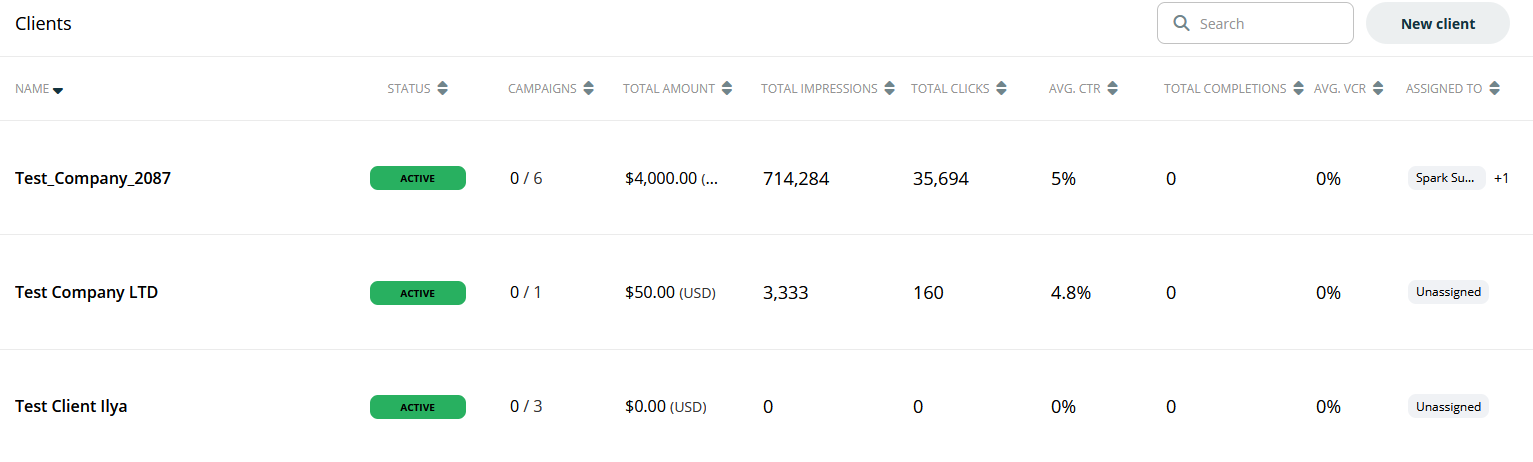
The Clients list displays the following detailed information for each of your Agency Clients:
|
Column |
Description |
|---|---|
|
NAME |
The name of the Agency Client. |
|
STATUS |
The current activation status of the Client. |
|
CAMPAIGNS |
The number of Campaigns associated with this specific Client. |
|
TOTAL AMOUNT |
The total monetary value of Campaigns for this Client. |
|
TOTAL IMPRESSIONS |
The cumulative impressions across all Campaigns for this Client. |
|
TOTAL CLICKS |
The total clicks across all Campaigns for this Client. |
|
AVG. CTR |
The average Click-Through Rate for this Client's Campaigns. |
|
TOTAL COMPLETIONS |
The total number of completed actions for this Client's Campaigns. |
|
AVG. VCR |
The average View Completion Rate for this Client's Campaigns. |
|
ASSIGNED TO |
Indicates if the client is assigned to a specific user or team. |
From the Clients list, you can utilize the search bar to quickly find specific Clients. You can also create new Clients directly by clicking the New client button.
To view the detailed information and Campaigns for any specific Client, simply click on their name in the list. This will direct you to the Client's dedicated details page.
Client details
When you click on a specific Client from your Agency's Clients list, you are directed to their dedicated Client details page. This page provides a focused overview of all Campaigns and performance metrics related to that individual Client, offering a more granular perspective than the aggregated view in the main Clients list.
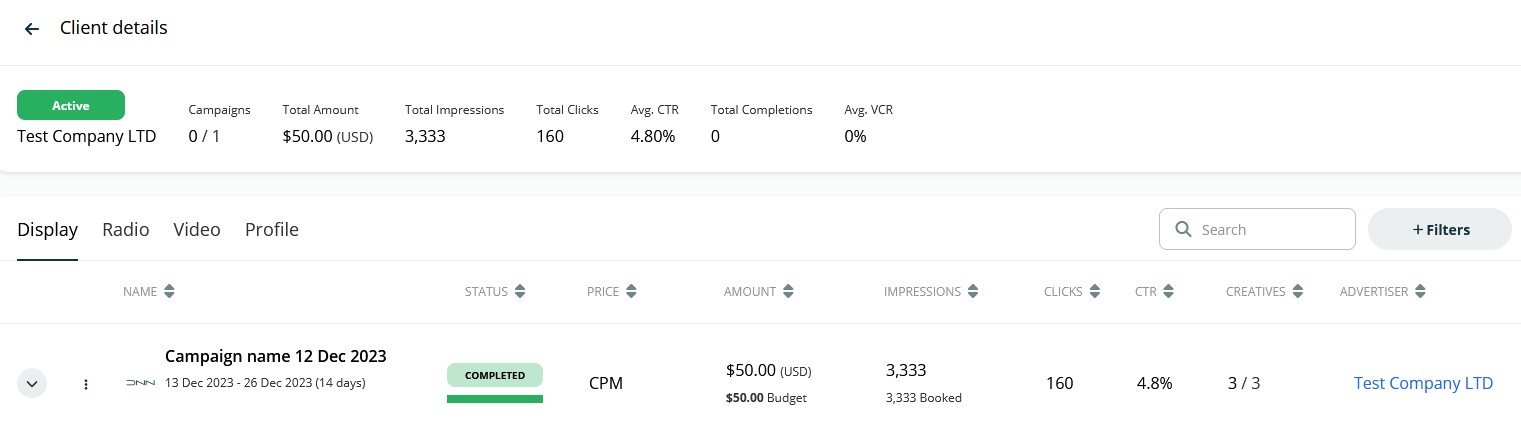
At the top of the Client details page, a summary bar provides an immediate snapshot of the Client's overall performance:
|
Metric |
Description |
|---|---|
|
Campaigns |
The total number of Campaigns associated with this Client, along with how many are currently active. |
|
Total Amount |
The total monetary value associated with their Campaigns. |
|
Total Impressions |
The cumulative number of impressions across all Campaigns. |
|
Total Clicks |
The total number of clicks received across all Campaigns. |
|
Avg. CTR |
The average Click-Through Rate. |
|
Total Completions |
The total number of completed actions or events tracked. |
|
Avg. VCR |
The average View Completion Rate, relevant for video Campaigns. |
Below this summary, the Client details page is organized into several tabs:
Campaigns Tabs: These tabs categorize and display Campaigns based on their respective Channel, specifically for this Client (e.g., "Display," "Radio," "Video"). Each tab presents a list of Campaigns relevant to that Channel, including details such as:
|
Column |
Description |
|---|---|
|
NAME |
The name of the Campaign. |
|
STATUS |
The current status of the Campaign. |
|
PRICE |
The pricing model used for the Campaign. |
|
AMOUNT |
The budget or amount allocated to the Campaign. |
|
IMPRESSIONS |
The impressions generated or booked for the Campaign. |
|
CLICKS |
The clicks generated by the Campaign. |
|
CTR |
The Click-Through Rate for the Campaign. |
|
CREATIVES |
The number of Creatives associated with the Campaign. |
|
ADVERTISER |
The Advertiser associated with the Campaign. |
You can also use the search bar and filters to refine the list of Campaigns within each tab.
Performance Summary
At the bottom of an individual Campaign's details page, you will find the Performance summary section. This chart visually tracks daily performance for key metrics, and you can adjust the time period using the date picker.
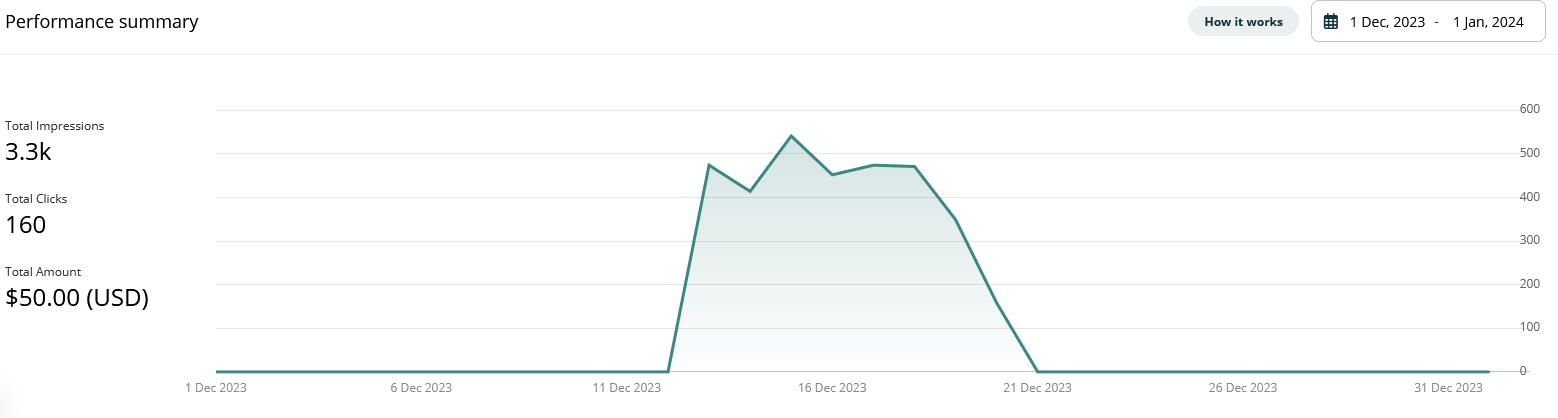
The Performance summary chart visually tracks the daily performance for key metrics related to the Campaign:
-
Total Impressions: The total number of times the Campaign's ads have been displayed.
-
Total Clicks: The total number of clicks received by the Campaign's ads.
-
Total Amount: The total monetary amount spent or earned by the Campaign.
You can adjust the time period displayed in the chart by using the date picker located in the top-right corner of the Performance summary section. This allows you to set custom date ranges to analyze the Campaign's performance.
Profile Tab
The Profile tab within the Client details page provides essential administrative and contact information specific to that Agency Client. This tab is for managing the Client's core details and understanding their relationship within the Platform.
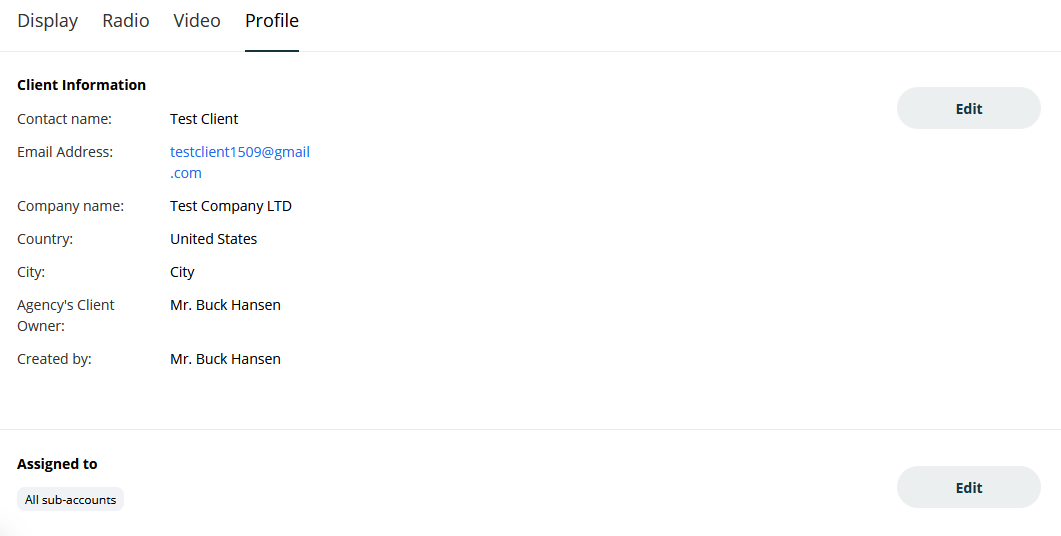
The Profile tab is organized into two sections:
Client Information
This section contains the fundamental contact details for the Client. You can modify these details by clicking the Edit button next to the section heading.
|
Field |
Description |
|---|---|
|
Contact name |
The name of the primary contact person for this Client. |
|
Email Address |
The main email address for communication with the Client. |
|
Company name |
The official name of the Client's company. |
|
Country |
The country where the Client's company is based. |
|
City |
The city where the Client's company is located. |
|
Agency's Client Owner |
The individual within your Agency who is designated as the owner or primary contact for this Client. |
|
Created by |
The user who created this Client record in the Platform. |
Assigned to
This section indicates how the Client is assigned within your account structure. An Edit button is also present here to adjust assignment settings. Here you can set which sub-account is assigned to a Client. By doing so the Client, the Client’s Campaigns and Orders will only be visible to that sub-account(s). You can assign one or multiple sub-accounts to a Client.
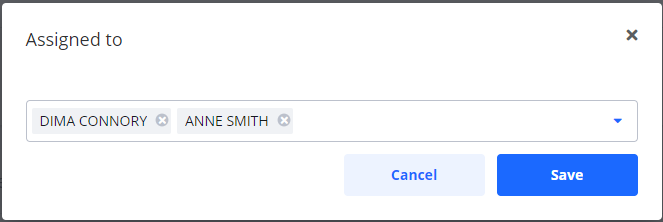
Clients which are not assigned to any sub-account are visible to all sub-accounts.
Frequently Asked Questions
Q: What is the difference between the main Clients list and the Client details page?
A: The main Clients list provides an aggregated overview of all your Clients. The Client details page provides a focused, in-depth view of the Campaigns and performance metrics for a single, specific Client.
Q: How do I create a new Client?
A: From the main Clients list, click the New client button.
Q: How do I control which of my team members can see a specific Client?
A: On the Client details page, go to the Profile tab and use the Edit button in the Assigned to section. You can assign one or more sub-accounts to the Client. Only users in those sub-accounts will be able to see that Client.
Q: What happens if I don't assign a Client to any sub-account?
A: If a Client is not assigned to any sub-account, they will be visible to all sub-accounts by default.