
Under the Sub-accounts section, you have an overview of all the sub-accounts you have created.
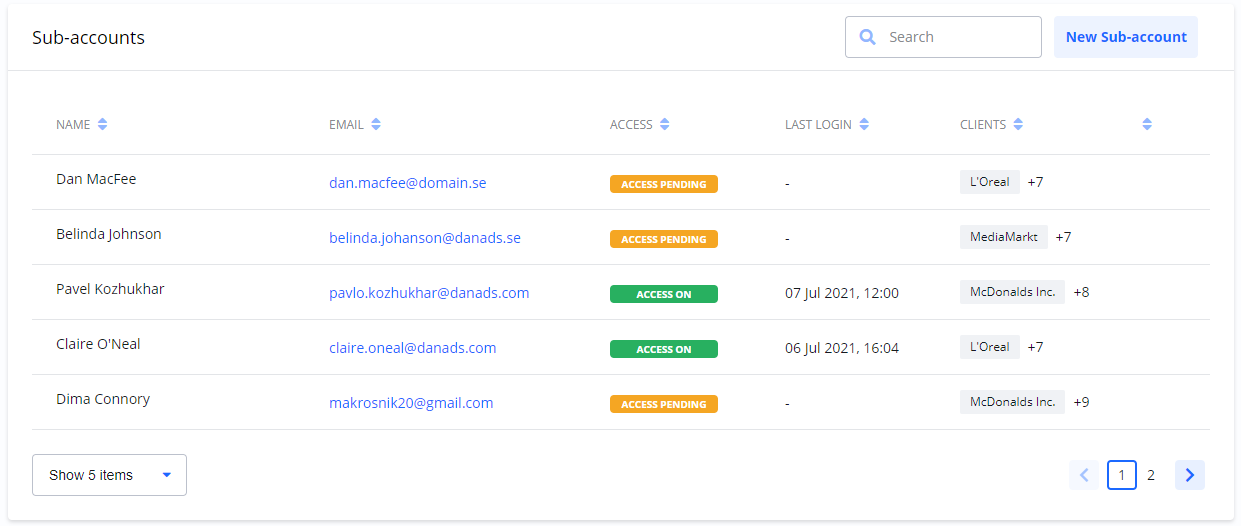
You can create an unlimited number of sub-accounts.
To open the details for a Sub-account, find it in the list and select the icon to open the sub-account details page.

Sub-account details
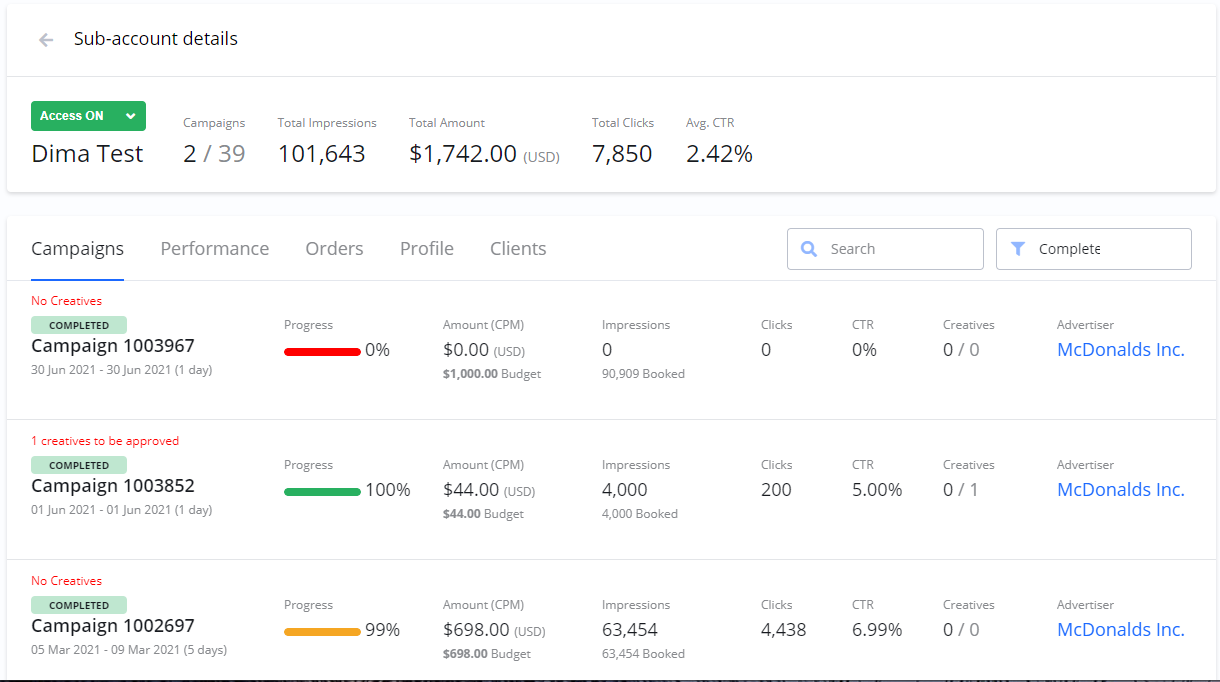
On the Sub-account details page, you can find everything related to a specific sub-account, organized into the following sections:
|
Section |
Description |
|---|---|
|
Campaigns |
A list of all Campaigns created by this Sub-account. |
|
Performance |
An overview of the performance across all Campaigns created by this Sub-account. |
|
Orders |
A list of all Orders created by this Sub-account. |
|
Profile |
Contains basic information, billing addresses, special commission rates, and other profile-specific settings. |
|
Clients |
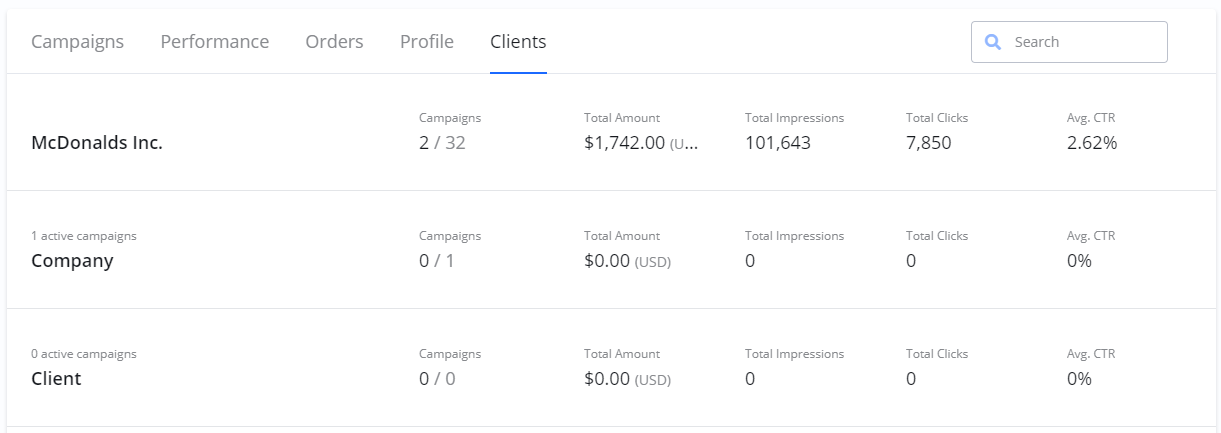
A list of all Clients this Sub-account is assigned to. |
Clients are assigned to a Sub-account from the Clients section by navigating to Clients > Details page > Assigned to.
Frequently Asked Questions
Q: What is the purpose of a Sub-account?
A: A Sub-account allows an Agency to create separate user accounts within its main account, often used to manage different team members, departments, or specific groups of Clients.
Q: How can I see the performance of a single Sub-account?
A: Navigate to the Sub-accounts list, open the details page for the specific Sub-account you want to review, and select the Performance section.
Q: How do I assign a Client to a Sub-account?
A: You must go to the main Clients section in the sidebar. From there, open the details page for the specific Client and use the "Assigned to" control to link them to the desired Sub-account.