
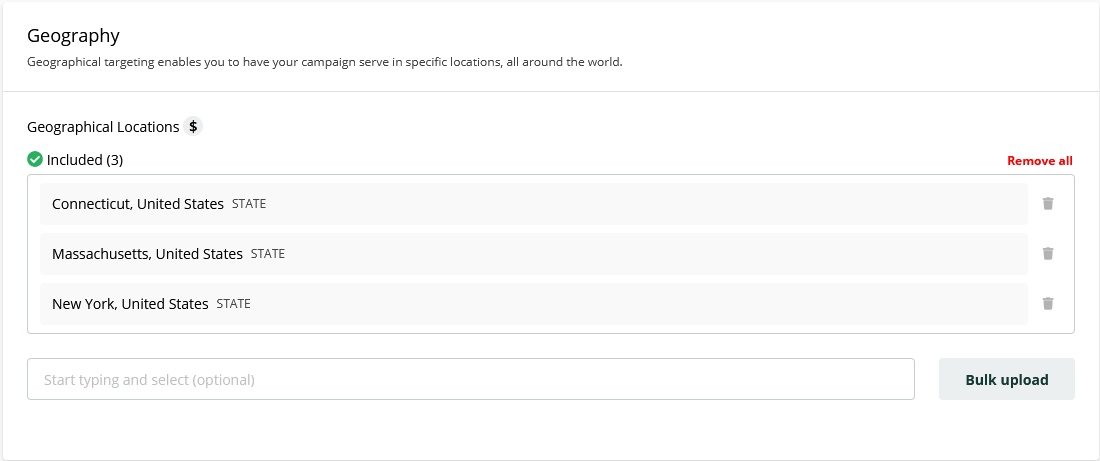
Geographical Targeting enables you to serve your ads only to users in specific locations that you choose. You can add locations either by searching for them one by one or by using the bulk upload feature.
Manual Location Search
To add locations individually, follow these steps:
-
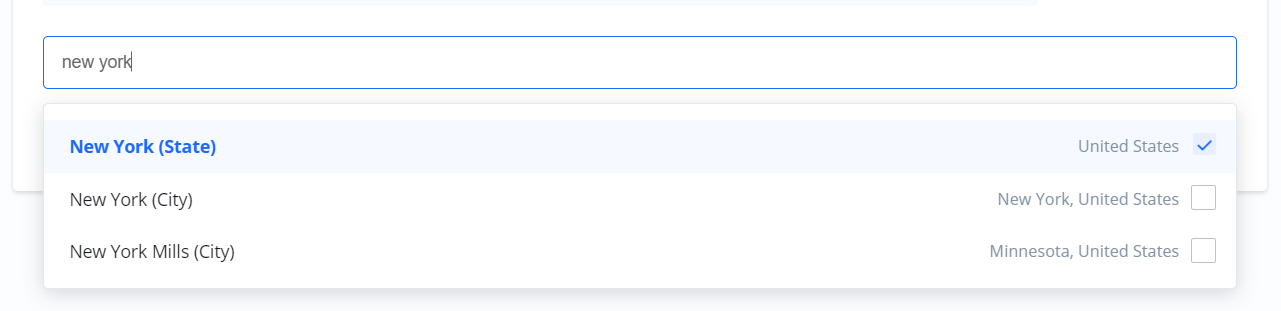
In the location search box, type at least three letters of the location you are looking for.
-
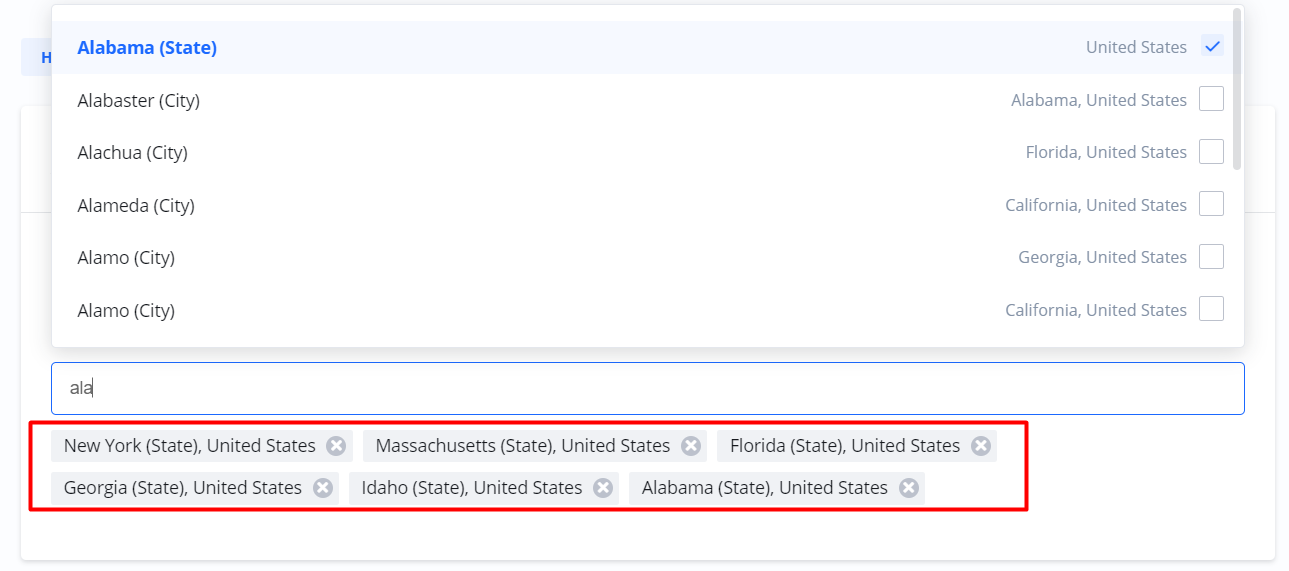
Select the desired location(s) from the search results.
-
Repeat this process to add multiple locations.
-
When you are done, select Next.
Bulk Upload
The bulk upload functionality allows you to add multiple locations at once, which is more efficient than adding them one by one.
-
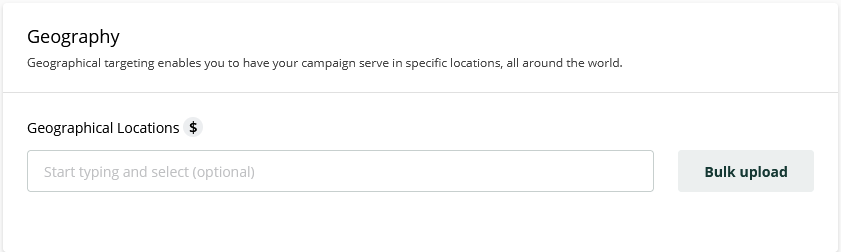
Select the Bulk upload button. This opens a new window.
-
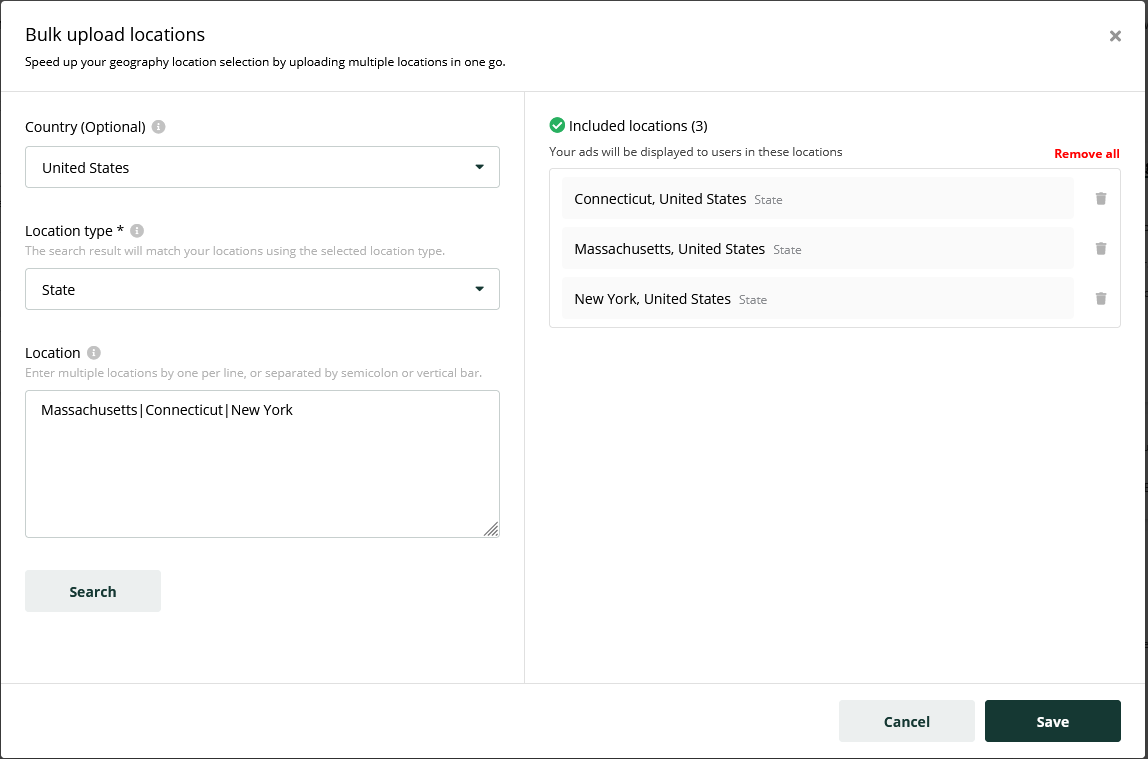
In the bulk upload window, configure your search:
-
Choose the Country (this is optional).
-
Specify the Location type (e.g., City, Region, Postal Code).
-
Enter your list of locations in the Location field.
-
-
Click the Search button.
-
Review the search results.
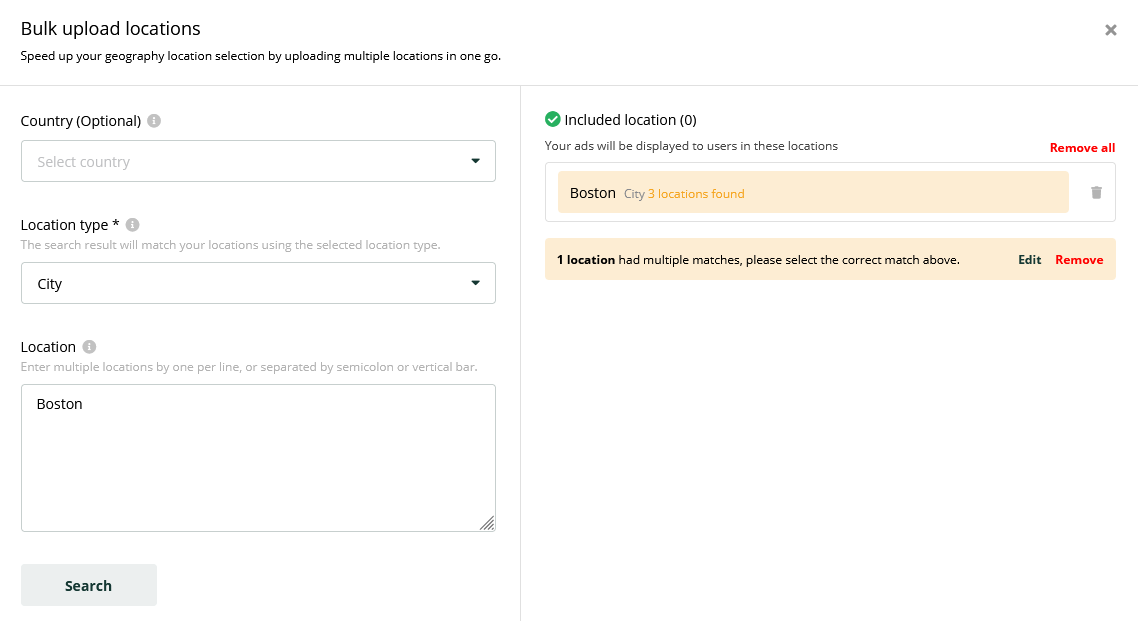
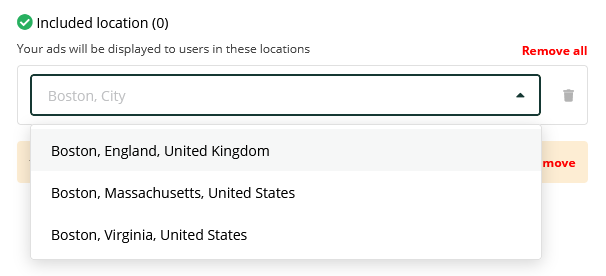
If a search term matches multiple possible locations, the result will be highlighted. Clicking it will allow you to choose the correct one from a list.
-
Once you have verified the results, click the Save button to add the locations to your Campaign.
Frequently Asked Questions
Q: What is Geographical Targeting?
A: It is a feature that allows you to show your Campaign ads only to users who are in specific geographic locations, such as countries, cities, or postal codes.
Q: What is the difference between manual search and bulk upload?
A: Manual search is for adding a few locations one at a time. Bulk upload is a tool designed to save time by adding a long list of locations all at once.
Q: What happens if one of my location names in a bulk upload is ambiguous (e.g., "Springfield")?
A: The Platform will highlight the ambiguous result. You can then click on it to see a list of all possible matches and select the correct one you intended to target.